1. User Stories
1.1 User Story 233966: FleetLogic - Expand user access to include the Dashboard page.
- The Dashboards menu will now be controlled by the ‘Dashboard Module’ contract option.
- The Dashboard menu will only be visible if the user has both "View Dashboards" access and the relevant Dashboards contract option enabled.
1.2 User Story 236100: FleetLogic - Jobs - Sort Drivers based upon the driver's status and then their display name.
- The list of Available drivers are now sorted by their status first, then by display name.
- Driver sorting is applied first by status, then by display name.
1.3 User Story 235185: FleetLogic - Display Driver status in the Driver Management grid.
- A new Driver Status column has been added to the grid.
- The column shows each driver’s current status.
- Users can sort and filter by Driver Status.
- The column is only visible when the login has the Vehicle Inspection or Jobs contract option enabled.
2. BUGFIXES
2.1 Bug 236288: FleetLogic - Driver Management - Current/Allowed Vehicle Tab must not be visible if Driver is a DriveLogic User.
- When marking a Driver as a DriveLogic user and editing the Driver details, The Current Vehicle Tab and Allowed Vehicles Tab will no longer be visible.
2.2 Bug 235932: FleetLogic - Drivers PrDP Licence Code filter is not working correctly.
- Filtering on the PrDP Licence code column did not return the correct results, this has been fixed and the correct results are returned.
2.3 Bug 236843: FleetLogic - Messaging - Reply/Delete pop up does not close when scrolling.
- When right clicking on a message to reply/delete to a text, the pop-up box remained fixed when scrolling. This has been resolved, the pop-up box is now removed.
2.4 Bug 236149: FleetLogic - Messaging - The reply option overlaps with the badge count when responding to a message.
- When a Group Message had an unread message count, the reply/delete menu displayed beneath the badge count. This has been resolved, the reply/delete menu is visible and shown on top of the badge count.
2.5 Bug 236168: FleetLogic - Messaging - Allowed to remove members and save Group message.
- A user could remove all group members from a group chat and save, this has been resolved, A validation is in place for at least one member to be selected.
2.6 Bug 236155: FleetLogic - Reports - A space is missing between ‘Weekly’ and ‘weekday’ in the Frequency field of the New Schedule Report.
- When scheduling a report, the Frequency for WeeklyWeekday displayed as one word, this has been updated to display ‘Weekly Weekday', the same will be displayed on the Schedule Type column.
2.7 Bug 236408: FleetLogic - Vehicle Management - Removing all Emergency Contacts must display a more appropriate message.
- When removing all emergency contacts, the error message was not clear, this has been resolved, the user will no longer be allowed to remove all emergency contacts.
2.8 Bug 236222: FleetLogic - Notification Configuration Management - Not all vehicles are displaying when added/removed.
- When creating a New Notification and adding or removing vehicles/groups, not all the vehicles/groups appeared. This has been resolved, all vehicles/groups selected will appear at once.
2.9 Bug 236390: FleetLogic - Working Hours - Invalid time value error displayed.
- Some logins would display an error when clicking on a working time. This has been fixed and no error appears.
- (Known Issue: Export data has records which display as ‘Unspecified’).
2.10 Bug 235992: FleetLogic - Account Settings - The statement auto-downloads when a prior download exists.
- When clicking on the Statements tab, downloading the statement, clicking on another tab, and back on the Statements tab, the statement would automatically download without clicking on the download button. This has been resolved; the statement will only download once the download button is clicked.
2.11 Bug 236422: FleetLogic - UI - Changes to visual text/icons.
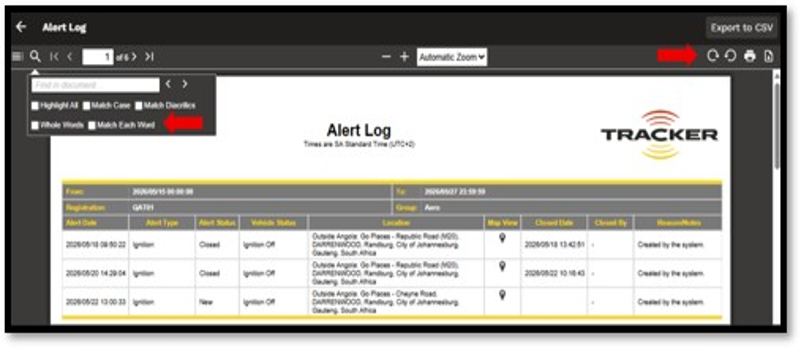
- Reports - Dark Mode - When generating a report in dark mode, the icons and text were not clearly visible. This has been resolved; all icons and text are visible.
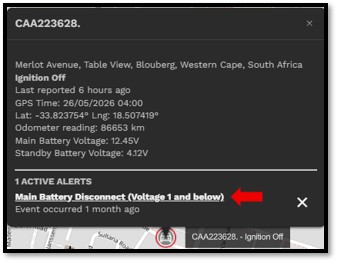
- Live Tracking - Dark Mode – The text for the Alert type on Live Tracking was not clearly visible, This has been resolved, the text will now appear in white.
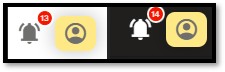
- Profile Icon - Dark and Light Mode – The icon edge was not rounded, this has fixed and the edge of the icon will appear rounded.
Was this article helpful?
That’s Great!
Thank you for your feedback
Sorry! We couldn't be helpful
Thank you for your feedback
Feedback sent
We appreciate your effort and will try to fix the article