- User Stories
- User Story 241982: Fleet Logic - Expense Management - Bulk Import of Repairs, Tyres and Maintenance related expenses
- The Bulk Import function for expenses previously supported Fuel and Toll entries only. This functionality has now been enhanced to include the following expense types:
- Repairs
- Tyres
- Maintenance – Service
- Maintenance – Wash
- Maintenance – Oil
- Other
- Each import file is unique and is validated according to the specific rules and requirements of the relevant expense type.
- The import does not support multiple expense types within a single file; each expense type must be imported using its own dedicated file.
- Only vehicles associated with the Fleet entity may be imported; vehicles linked to other entities will not be allowed.
- For fields requiring a Rand value, the UI does not accept the ‘R’ currency symbol. The corresponding spreadsheet column must be formatted as a numeric field without the currency indicator.
- User Story 240032: FleetLogic - Route Management - Allow a user to create a Route by clicking on the map.
- A User will be able create a route by plotting destination points directly on the map.
- This functionality is available for both new routes and editing of existing routes.
- A new ‘Open Point Drawing Tools’ icon has been added to the routes map.
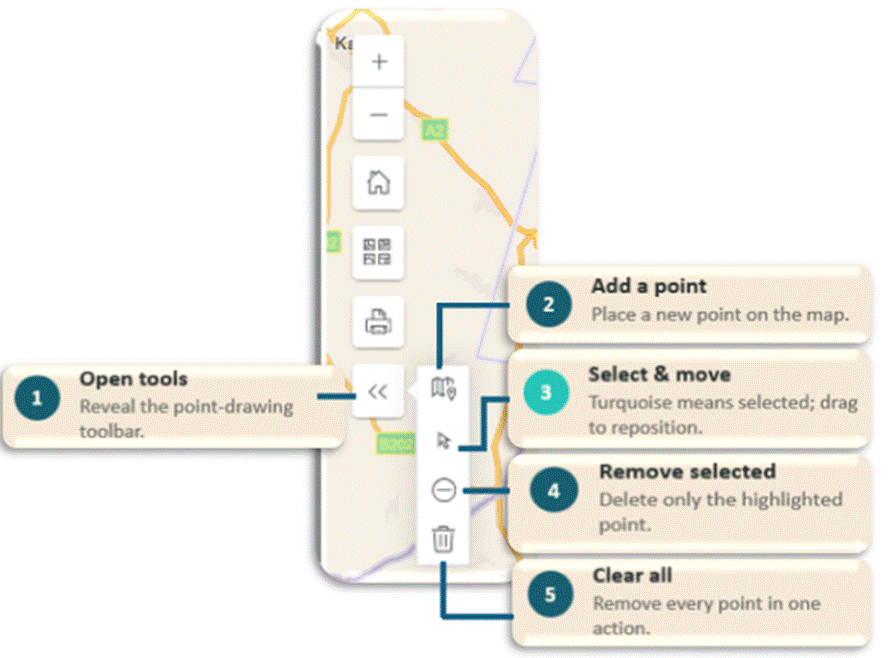
- For new routes, the ‘Open Point Drawing Tools’ panel is automatically expanded by default.
- When hovering over the map, the cursor will automatically switch to the ‘Add Point’ mode.
- When editing an existing route, the ‘Open Point Drawing Tools’ panel will be collapsed by default.
- To add points to the map, the user must open the ‘Open Point Drawing Tools’ panel and select the ‘Add Point’ icon before placing points on the map.
- Once a second point is added to the map, a loading indicator will appear in the bottom-right corner.
- The route calculation will only appear once two or more destinations have been added and the travel mode is selected.
- After a second point is added, the pointer will revert to the standard mouse cursor.
- To add additional points, the user must reselect the ‘Add Point’ icon from the map tools or select the Add Destination button on the form.
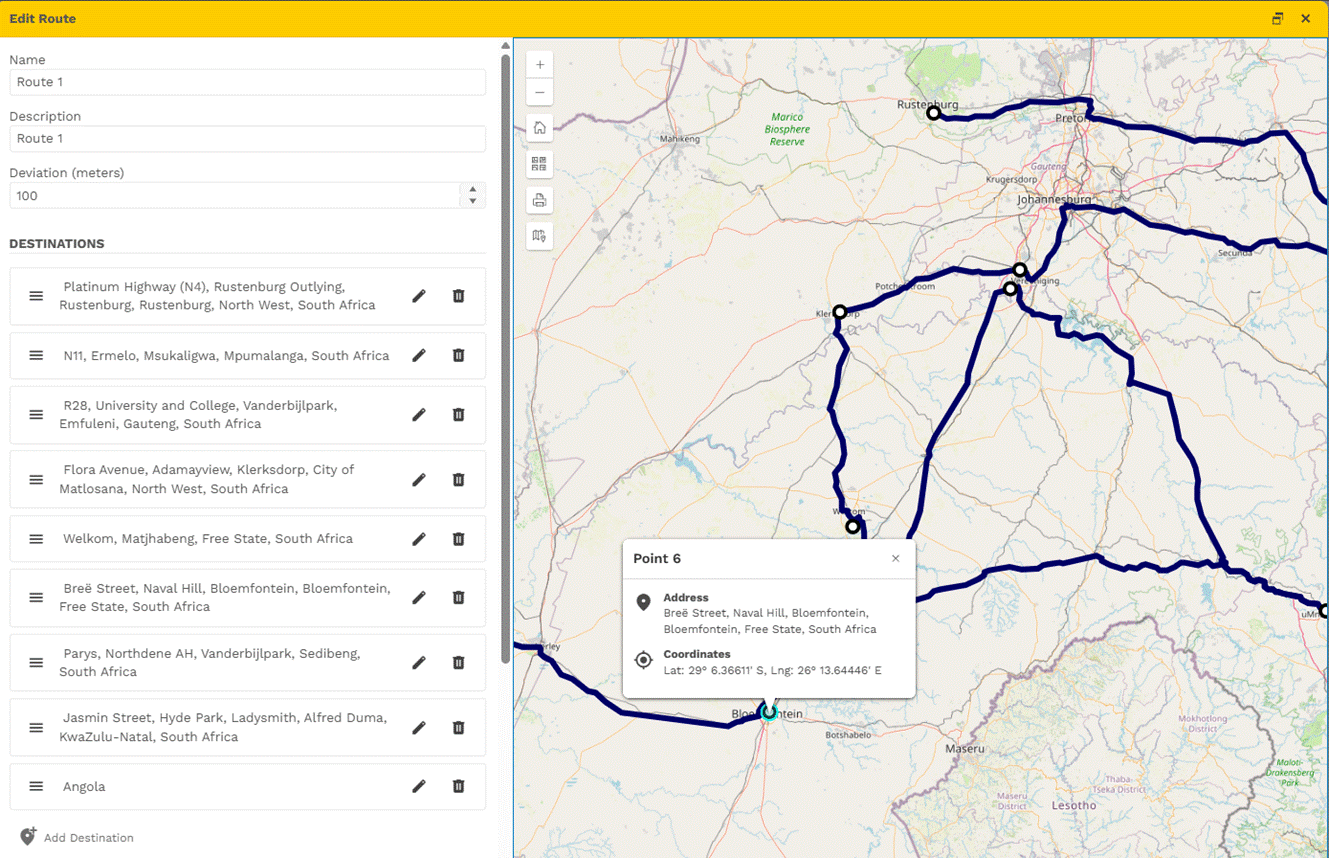
- All points added to the map will be displayed in the Destination section on the form.
- Points added to the map will be listed under Destinations on the form. Please note plotted points will not have a road number. Only searched addresses will display a road number.
- When a point is selected, the point number, address, and coordinates will be displayed. The point number reflects the sequence in which the point was added to the route.
- Users can still add destinations by manually searching for an address or by selecting a saved location.
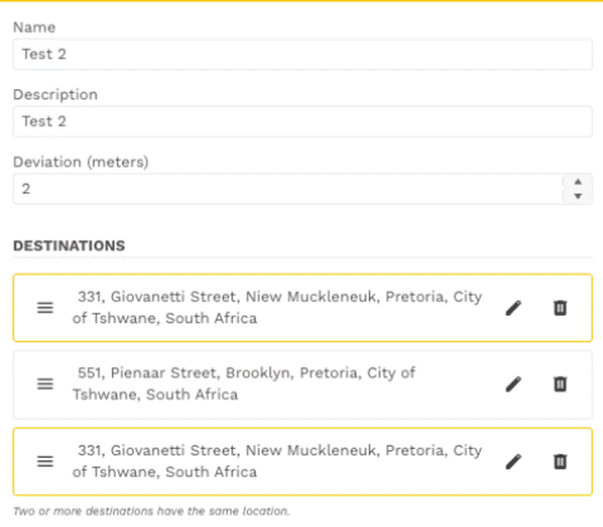
- Duplicate destinations/points of the same type will not be allowed.
- If the user adds a duplicate destination(Address Search/Location) via the form, it will highlight which addresses/locations are duplicate. The form will then be invalid.
- A validation message will be displayed to notify the user of the duplicate entry on the form.
- If the user is adds a duplicate destination via the map ie. plotting a point , they will be prevented from doing so, the point will not be plotted.
- If a route cannot be calculated, a notification “We were unable to calculate a route for the chosen destinations” will be displayed.
- The set departure or arrival time is no longer a required field.
- A reset button has been added to the Departure Time and Arrival Time fields. This will allow users to clear the Depart At/Arrive By radio buttons as well any previously entered date and time values.
- Bugs
- Bug 244051: FleetLogic - Contacts - Changing an address does not change the province
- When modifying a contact's address, if the newly entered address belonged to a different province, users had to manually update the province field. This issue has now been resolved. When an address is searched for and selected, the province field will automatically update to match the selected address.
Was this article helpful?
That’s Great!
Thank you for your feedback
Sorry! We couldn't be helpful
Thank you for your feedback
Feedback sent
We appreciate your effort and will try to fix the article